Before you start — pin the extension
Pin the extension icon to your Chrome toolbar before anything else. During account or
channel refresh, the toolbar badge briefly shows progress like 0/N,
i/N, OK, or ERR, then clears itself a few
seconds later. Final cleanup results appear in the popup and through Chrome notifications.



1/3 or OK.
Step 1 — Refresh your accounts
Open the popup and press Refresh. The extension automatically searches Chrome
for every Google account you're currently signed into by working through its tab flow,
then brings the results back to the popup.
Step 2 — Pick an account and a YouTube channel
Reopen the popup and you'll see a tidy list of your Google accounts alongside the YouTube channels linked to each one. Select the account you want to clean up, then pick the YouTube channel.
Watch history
Clears history on YouTube. The extension confirms your active account and channel before touching anything.
Search history
Clears history on My Activity. The extension confirms your active Google account before it deletes anything.
Step 3 — Choose what to delete and run
Check watch to clear your watch history, search to clear
your search history, or tick both. Click Run cleanup and you're done.
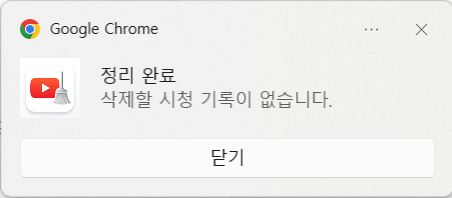
If Google asks you to verify again mid-run
Sometimes My Activity shows an extra sign-in screen halfway through. The extension stops
and waits instead of guessing what to do. Finish the verification in that tab,
then come back to the popup and press Resume to pick up right where you left off.
A few things worth knowing
- If the extension can't confirm which account is active, it stops on its own — it won't delete anything it's not sure about.
- If a Google account doesn't have a YouTube channel set up, the extension may fall back to the default Google profile.
- Use
Retry channelsif the channel shown in the popup looks wrong — it checks the active tab again.
Questions? See the Release Notes, Privacy Policy, or Support page.
시작 전에 — 확장 아이콘을 고정해두세요
Chrome 툴바에 확장 아이콘을 고정해두는 걸 먼저 추천해요. 계정이나 채널 정보를 새로고침할 때는
툴바 뱃지에 0/N, i/N, OK, ERR
같은 진행 상태가 잠깐 표시되고 몇 초 뒤 자동으로 사라집니다.
최종 정리 결과는 팝업 상태와 Chrome 알림으로 확인할 수 있어요.
1/3 같은 진행 표시나
OK 같은 결과가 잠깐 보일 수 있어요.
1단계 — 계정 조회
팝업을 열고 조회를 누르세요. 확장이 탭에서 현재 Chrome에 로그인된 Google 계정들을
확인한 뒤, 결과를 다시 팝업으로 가져옵니다.
2단계 — 계정과 YouTube 채널 선택
팝업을 다시 열면 탐색된 Google 계정 목록과 각 계정에 연결된 YouTube 채널이 깔끔하게 정리돼 있어요. 지우고 싶은 계정을 고르고, 대상 YouTube 채널을 선택하면 됩니다.
시청 기록
YouTube에서 시청 기록을 삭제합니다. 삭제 전에 활성 계정과 채널을 확인하고 진행해요.
검색 기록
My Activity에서 검색 기록을 삭제합니다. 삭제 전에 활성 Google 계정을 한 번 더 확인해요.
3단계 — 삭제 범위 선택 후 실행
시청 기록을 지우려면 watch, 검색 기록을 지우려면 search,
둘 다 지우려면 모두 체크하세요. 정리 실행을 누르면 끝입니다.
중간에 Google이 재인증을 요청하면
My Activity에서 추가 인증 화면이 뜨는 경우가 있어요. 이때 확장은 멋대로 넘어가지 않고
그 자리에서 멈춰서 기다립니다. 해당 탭에서 인증을 마치고, 팝업으로 돌아와서
재개를 누르면 멈췄던 지점부터 이어서 진행돼요.
알아두면 좋은 것들
- 어떤 계정이 활성화돼 있는지 확인할 수 없으면 확장이 알아서 멈춥니다. 확실하지 않은 상태에서는 아무것도 삭제하지 않아요.
- Google 계정에 YouTube 채널이 연결돼 있지 않으면 기본 Google 프로필로 대체될 수 있어요.
- 팝업에 표시된 채널이 이상해 보이면 채널을 다시 확인해 현재 탭 기준으로 한 번 더 읽어오세요.